
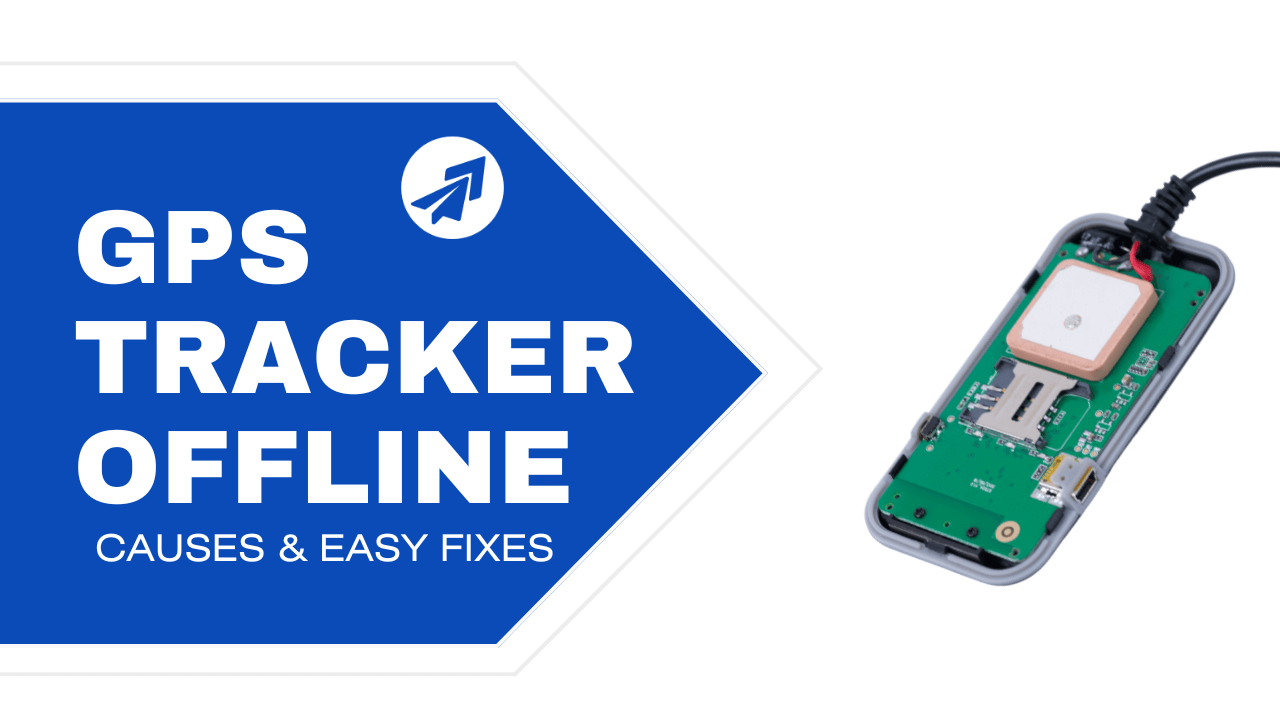
you open your GPS tracking app, eager to see your vehicle’s location – but it shows “Offline.” Panic and frustration set in. 😣 Don’t worry, you’re not alone. GPS trackers going offline is a common headache for vehicle owners and fleet managers worldwide. The good news is that most offline issues come down to a few simple causes that you can fix easily at home.
In this guide, we’ll explain 7 common reasons your GPS tracker might be offline (in ultra-simple terms) and how to fix each one. We’ll also show how the right platform (like Fleet Stack™) can make troubleshooting effortless, so you spend less time wrestling with tech and more time on the road with confidence.
Take a deep breath – none of these fixes require any coding or advanced technical skills. 🙂 Whether you’re tech-savvy or not, you can follow these tips. And if anything still seems confusing, Fleet Stack’s 24/7 support team is always ready to guide you step-by-step. Now, let’s get your GPS tracker back online and updating properly!
1. GPRS/Data Not Active (No Mobile Data Connection)
Cause: One of the most common reasons for an “offline” GPS tracker is that the device simply isn’t able to access mobile data. GPS trackers rely on a SIM card with a data plan (much like your phone’s) to send location info to the server. If that data connection isn’t active, the tracker can’t transmit anything – giving you an offline error. This often happens if the SIM’s GPRS (General Packet Radio Service) or mobile internet feature is not enabled or configured. In fact, industry statistics show that around 80% of tracker offline issues are related to SIM card problems like inactive data service.
Example: Imagine you bought a new GPS tracker and inserted a SIM card, but you never activated a data plan or the SIM only has calls/SMS enabled. The tracker might still respond to SMS commands, but it won’t send data online because the internet function is off. It’s like having a phone with no internet – the GPS can pinpoint its location, but it can’t send that info to you without data.
Easy Fix: Ensure your tracker’s SIM card has mobile data enabled and an active data plan. Here’s what you can do:
- Check the SIM card plan: Is there an active data bundle or credit? Contact your SIM provider or log into its app/website to confirm that data (GPRS) is turned on. (Some providers require a special activation for data service – make sure that’s done.)
- Enable GPRS on the device: Many GPS trackers have a default mode for SMS only. You might need to send an SMS command to the device (check the manual) to switch it to GPRS mode (data mode). For example, some trackers use a command like gprs123456 to enable data transmission. Once in GPRS mode, it will start using mobile internet to report location.
- Test the connection: A quick way to test the SIM is to put it in a mobile phone. If you can browse the web or see data working on that phone, the SIM’s internet is active. If not, you’ll know the SIM is the culprit. (Tip: one manufacturer notes that a tracker being able to reply via SMS doesn’t guarantee it has data – it could still be out of data while calls/SMS work.)
After ensuring GPRS/data is active, restart your GPS tracker and see if it comes online. In most cases, the tracker should reconnect within a few minutes once it has a data link.
Fleet Stack™ tip: With Fleet Stack’s real-time status alerts, you would get an instant notification if your device loses its data connection. The platform’s auto-detection tools can even pinpoint if a SIM issue is causing the offline status. Instead of guessing, Fleet Stack™ tells you exactly what’s wrong – saving you lots of trial and error.
2. Incorrect APN Settings
Cause: If your SIM has data but the tracker still won’t come online, the next likely culprit is APN settings. APN (Access Point Name) is basically the network profile that the tracker uses to connect to the internet through your SIM card’s carrier. Think of it as the “gateway” to the mobile network. If the APN is not set correctly in the device, the data won’t flow. Each mobile network has its own unique APN (sometimes with a username and password), so if you haven’t configured this, your tracker can’t get online. An incorrect APN is a very common mistake, especially in DIY or self-hosted GPS tracker setups.
Example: Suppose you’re using a SIM from AT&T in your tracker. AT&T’s APN (for IoT devices) might be something like internet.br. If your tracker is still set to a default or a different APN (e.g., one from another country or carrier), it’s like having the wrong WiFi password – the device simply won’t connect. The tracker will appear offline because it’s failing to reach the internet without the right APN login info.
Easy Fix: Set the correct APN for your SIM’s carrier on the GPS device. Here’s how:
- Find your carrier’s APN: A quick Google search for “<Your Carrier Name> APN settings” will usually show the APN details. For example, T-Mobile might use fast.t-mobile.com, Verizon might use vzwinternet, etc. Each operator has its own APN. Make sure you get the exact spelling, and if provided, note any username or password (most don’t require one, but some do).
- Configure the APN in your tracker: This is typically done via an SMS command or through the tracker’s mobile app/platform. For instance, many trackers use a command format like APN,APN_NAME,USERNAME,PASSWORD#. You would replace APN_NAME with the one from your carrier (and username/password if needed; if not, those fields can be left blank). Check your device manual for the exact SMS format. Send the APN command to your tracker’s SIM number.
- Reboot and test: After updating the APN, restart the tracker. Give it a couple of minutes to reconnect. If APN was the issue, you’ll notice the device status change to “Online” on your tracking platform once it successfully uses the new network settings.
If you’re unsure of the APN or the command format, your GPS tracking platform’s support team should help. Fleet Stack™, for example, simplifies this by often auto-detecting the correct APN settings for many carriers, or providing a one-click configuration in its user dashboard. No guesswork needed – it’s part of Fleet Stack’s commitment to no-coding self-installation.
3. Power Cable Cut or Disconnected (No Power to Device)
Cause: Your GPS tracker might actually be completely offline (powered down) due to a power issue. If it’s a wired vehicle tracker, it draws power from your vehicle’s battery. Any break in that power connection will turn the device off, making it appear offline. Common scenarios include: a blown fuse, loose wiring, a cut or damaged cable, or the device was unplugged (sometimes deliberately by a mischievous driver or during maintenance). In fleets, it’s not unheard of for a driver to remove the tracker’s fuse or disconnect it to avoid being tracked – leading to “tracker offline” alerts. According to GPS experts, power supply interruptions (like a disconnected vehicle battery or wiring cut-off) are a major reason trackers go offline.
Example: Let’s say your car was in the shop for repairs and the mechanic unwittingly disconnected the tracker’s wires, or maybe you had your car battery replaced and the tracker wasn’t reconnected properly. Suddenly, your app shows the vehicle went offline at that time. In another case, someone might have intentionally cut the tracker’s wire or removed it from the OBD port. Without power, the device cannot function at all – it’s as if it’s “dead” until the power is restored.
Easy Fix: You’ll want to inspect and restore the tracker’s power supply:
- Check the wiring/fuse: Look at where the tracker is installed in your vehicle. Ensure the wires are firmly connected. If your tracker has an in-line fuse, check that it isn’t blown. (A blown fuse can occur during power surges or if someone intentionally shorts it.) Replace the fuse with one of the same rating if it’s burnt out. Also verify that any ground (black) wire and power (red) wire are securely attached to the vehicle’s power and not corroded or cut.
- Confirm the vehicle battery status: If the vehicle’s main battery is extremely low or turned off (some drivers turn off the battery during long parking periods), the tracker won’t have power. Ensure the vehicle battery is charged and operational.
- Test the device: Many trackers have an LED indicator for power/GSM. See if any lights turn on when the car ignition is on. No lights at all could indicate no power. Once you fix any wiring issues, the LEDs should light up and the device will reconnect.
- Prevent tampering: If you suspect someone tampered with the device, you might secure the tracker or use tamper-evident seals. (Interestingly, some advanced platforms like Fleet Stack™ can send you an alert the moment external power is lost on a tracker, so you know if and when someone unplugs it.)
Give the tracker a few minutes after restoring power; it should come back online. If it has an internal backup battery, it might reconnect even before you start the engine (as long as the main power is fixed).
Fleet Stack™ tip: Fleet Stack’s dashboard includes troubleshooting suggestions that will flag power issues. For example, it can show the last voltage level reported by the tracker. If it was low or dropped suddenly, the dashboard will suggest “Power loss” as a likely cause, guiding you exactly to this fix. Plus, with Fleet Stack’s real-time alerts, you’d immediately get a notification if your tracker’s power is cut – allowing you to take action before anything serious happens.
4. GMT/Timezone Mismatch (Incorrect Device Time Settings)
Cause: This one is a bit less obvious but can definitely make your GPS tracker appear offline or not updating. GPS devices record timestamps when sending data. If the device’s clock is set to the wrong time zone (GMT offset), it can confuse the tracking server. In many systems, devices are expected to use UTC/GMT 0 as the time reference. If your tracker is set to a different timezone (say GMT+5 or GMT-4), the data might be recorded in the future or past relative to the server time, causing it to either be ignored or show up incorrectly. One GPS tracking guide notes that all GPS devices must send data in UTC 0 timezone for proper operation. A mismatch here can result in your tracker not showing new updates or being marked offline because the timing of the messages doesn’t align.
Example: Imagine your tracker is still set to Beijing time (GMT+8) by default, but you’re using it in London (GMT0). When it’s midday in London, the device might tag the data as 8 PM (which is in the future relative to GMT0). The server thinks these timestamps are erroneous or not real-time, so it may not display them as “latest” data. Thus, your vehicle could be moving, but the platform shows it stuck hours behind or simply “offline” since it’s not receiving current data (according to the incorrect timestamp).
Easy Fix: Set your GPS tracker’s timezone to GMT/UTC 0 (or to the timezone required by your tracking platform). This ensures the timestamps align with reality:
- Check device timezone setting: Many trackers allow a timezone command. Often, the default SMS command could be like time zone123456 0 (the exact format varies). This would set the device to GMT+0. Some devices might use a command where you specify an offset, e.g., GMT,0# for GMT0. Consult your tracker’s manual for the exact command to set timezone.
- Use platform settings if available: Some tracking platforms allow you to correct for device timezone in the software. For instance, in Fleet Stack™ or others, you might register the device and indicate its timezone. However, it’s generally best to set the device to UTC 0 to avoid any confusion.
- Clear old data (if needed): If a lot of data was logged with the wrong time, you might see disordered history. After fixing the timezone, it could take a fresh start or clearing the old log to have everything display correctly. But for simply coming “online,” once the time is correct, new data should register fine.
After adjusting the timezone, restart the device and watch the platform for new location updates. If timezone was the issue, you’ll now see the tracker’s status update normally in real-time. No more weird gaps or “frozen” location due to time confusion.
Fleet Stack™ tip: Fleet Stack auto-handles timezones by normalizing all incoming data to your local time on the dashboard. It also provides clear documentation on setting your device’s timezone correctly (and in many cases, devices added to Fleet Stack’s platform get their time configured automatically during one-touch deployment). The result? You never have to worry about GMT mismatches – Fleet Stack™ keeps your trackers reporting on time, all the time.
5. SIM Card Expired or Low Balance
Cause: If your tracker has been working fine for weeks or months and suddenly goes offline, your SIM card’s balance or expiry could be the issue. Prepaid SIM cards can run out of data credit, or monthly data plans can expire if not renewed. Sometimes, IoT SIMs have an expiration date (e.g., valid for 1 year). If the SIM can’t access the network due to insufficient balance or expiration, the tracker will drop offline (even though the device itself is okay). This actually tops the list of reasons for device offline in many cases. The tricky part is that users often mistakenly believe the SIM has data, because some functions (like SMS) might still work, but the GPRS data portion is exhausted.
Example: You have a tracker on a cheap pay-as-you-go SIM. It sends you SMS alerts and also reports to the platform. After a month, the data allotment (say 100 MB) was used up, and you forgot to recharge. The next time the tracker tries to send data, it fails – the SIM is effectively offline from a data perspective. Or perhaps the SIM card’s validity period ended. The result is your GPS device can’t communicate with the server, showing offline on your app.
Easy Fix: Check and renew your SIM card’s plan. Here’s what to do:
- Verify SIM status: Take out the SIM and put it in a phone, or use the SIM provider’s app/website. Check the account balance and expiration date. Make sure there’s data available. Try using mobile internet on that SIM via a phone; if you can’t load any website, that’s a red flag.
- Recharge or top-up: If the data is low or zero, recharge the SIM with a suitable data pack. It’s often best to get an unlimited or long-term IoT data plan for trackers so you don’t have to worry monthly. After topping up, ensure the SIM is active (you might need to power-cycle the tracker or SIM).
- Regular maintenance: Set a reminder to monitor the SIM’s balance periodically. Some platforms send alerts if a device hasn’t connected for a while – which could hint at a SIM issue. Fleet Stack™, for instance, can notify you if a device is offline for X hours, prompting you to check things like SIM balance. Staying proactive helps; keep a record of your SIM recharges to avoid sudden surprises.
Once the SIM has active data again, your tracker should reconnect automatically. If it doesn’t, you might need to reboot the device. Going forward, always ensure your SIM cards have sufficient funds or an active subscription. This is a simple thing to overlook, but it’s the number one cause of GPS trackers going offline in the field.
Fleet Stack™ tip: Fleet Stack’s platform includes a dedicated user dashboard that can display device health, including last contact time. If a device’s SIM expired, you’d see it hasn’t checked in. Plus, Fleet Stack’s support team offers free consulting – they can even help diagnose if an offline device is due to a SIM issue (by guiding you through a few checks). Peace of mind is just a call away, 24/7.
6. IP/Port Mismatch or Data Whitelist Issues
Cause: Your GPS tracker might be perfectly fine, but if it’s sending data to the wrong address or port, the data won’t reach your tracking server. Think of it like sending mail to the wrong PO Box – it never gets delivered. Most GPS trackers need to be configured with the server’s IP address (or domain) and port number. If these parameters are misconfigured, the device will be “online” on the cellular network but essentially lost because it’s not contacting the correct server. This often happens when switching to a new tracking platform or self-hosted server and forgetting to update the device’s settings. Additionally, some systems or SIM cards have security filters (whitelists/firewalls) that might block data if not set up properly. For example, a fleet platform noted that if all your devices are offline at once, a likely cause is a firewall blocking traffic from the trackers – essentially, the server isn’t reachable because it’s being blocked.
Example: Suppose your tracker was initially set to communicate with IP 123.45.67.89 on port 5055, but you moved to a new platform like Fleet Stack™ which uses a different domain/IP and port. If you don’t send the new SERVER command to the device, it will keep trying the old address – and thus appear offline on the new platform. Similarly, imagine your company’s IT department installed a new firewall and it’s not allowing the tracker’s data through to the server’s IP. The trackers would all suddenly show offline because their data packets are being stopped at the gate.
Easy Fix: Verify and correct the device-server connection details:
- Check your server info: Confirm the exact server domain/IP and port that your tracker should use. If you’re using a commercial service, these are usually provided in the setup guide. If self-hosting (like Traccar or others), you’ll know the IP (or DDNS) and listening port.
- Send the configuration to device: Use the tracker’s SMS command or configuration tool to update the server settings. For example, many devices accept a command like SERVER,1,domain.com,port,0# or SERVER,0,IP,port,0# to set the server (the syntax can vary). Double-check that you entered the correct numbers – one small typo and the device might be pointing to a non-existent address. It’s a good idea to retrieve the current settings from the device (if possible) to see what it’s using.
- Firewall/whitelist check: If you manage the server, ensure that the server’s firewall is open to the tracker’s data (typically, allow the UDP/TCP port for incoming data). If you’re behind a router (NAT), port forwarding might be needed to route data to your server. On the SIM side, some IoT SIM providers allow locking a SIM to certain IPs (for security). If so, make sure your platform’s IP is whitelisted in the SIM management portal. Likewise, some tracking platforms require adding the device’s IMEI or ID to your account (effectively “whitelisting” the device on the server). If you accidentally entered the wrong IMEI on the platform, the server will ignore the device’s data. So double-check the device ID in your platform’s device list.
After correcting the IP/port and any whitelist issues, restart the tracker. Within a few moments, you should see it come online (given that all other settings like SIM and APN are fine). The key is: the tracker and server must be talking in the right place. Once they’re on the same page, you’ll get your live tracking back.
Fleet Stack™ tip: Fleet Stack makes this super easy with one-touch deployment. When you add a new device to Fleet Stack™, the platform automatically provides the correct server details and even remote OTA configuration in some cases. There’s no need to manually fiddle with IPs and ports for supported devices – Fleet Stack’s system ensures your device “knows” where to connect. Plus, Fleet Stack operates on a robust cloud infrastructure with built-in firewall handling, so you won’t run into the common self-hosted headaches. If anything ever goes wrong, our expert support is just a click away to troubleshoot connection issues for you.
7. Server Not Reachable or DNS Failure
Cause: Sometimes the problem isn’t on your side (device or SIM) at all, but with the tracking server or network. If the GPS tracking server is down, undergoing maintenance, or if the domain name is misconfigured, your tracker’s data can’t reach it – making the device show offline. For instance, if your tracker is configured to send to a domain (e.g., gps.example.com) and that domain’s DNS is failing or the server is offline, the device will keep trying but nothing comes of it. One device maker notes that if the domain name doesn’t resolve to the correct server, the device will be offline. Similarly, if you changed your tracking service and didn’t update the device (as covered above), it’s effectively sending data into a void. Server-side issues are less common but can occur in smaller tracking companies or during temporary outages.
Example: Let’s say you’re using a free or cheap GPS platform run by a small provider. One day their server goes down (or their domain expires) – suddenly all trackers show offline. Alternatively, maybe you set up your own server on a PC, but that PC is off or your home internet changed IP without you knowing. The devices can’t contact the server, so they appear offline. Another scenario: a DNS issue – the domain your device uses isn’t translating to the correct IP. This could happen if the domain was typed wrong or if the DNS records changed.
Easy Fix: Verify the server status and connectivity:
- Check the tracking platform: Log into the platform’s web interface or app. If the server itself is unreachable (e.g., site won’t load or shows an error), that’s a sign the issue is on the server side. You may need to wait for the provider to fix it (or contact their support). If you host it yourself, ensure your server machine is online and the service is running.
- Ping or test the domain: If you have the technical know-how, try to ping the server’s domain or IP from a computer. If you get no response, there’s a network issue. Sometimes switching the tracker to a direct IP (instead of domain) can work around a DNS problem. For example, if gps.example.com is supposed to point to 123.45.67.89 but isn’t resolving, configure the tracker with the numeric IP directly.
- Verify domain settings: Make sure you didn’t accidentally input a wrong domain in the tracker. A single typo can send it to the wrong place. Also, check if your platform changed their server address recently (some companies might migrate servers and require you to update devices).
- Wait or contact support: If it’s a maintenance window on the server, it should be communicated by the provider. Usually, these outages are short. If not, reach out to the platform’s support to ask if there are known server issues.
In summary, ensure that the destination (server) is alive and accepting data. Once the server is reachable again, your tracker should automatically reconnect and come online. There’s not much to “fix” on your device in this case except possibly updating to a new server address if it changed.
Fleet Stack™ tip: One of the advantages of Fleet Stack’s architecture is its 99.9% uptime and robust infrastructure. We use multiple redundant servers globally, so it’s extremely rare for the service to be unreachable. You won’t have to worry about random server outages or DNS issues. And because Fleet Stack™ is a fully managed platform (yet self-hosted in terms of data ownership), we handle all the server maintenance behind the scenes. Should anything ever occur, our support will proactively notify you. This means with Fleet Stack, “server not reachable” is virtually a non-issue – you get seamless tracking around the clock on a platform you can trust.
Switch to Effortless Tracking with Fleet Stack™
By now, you’ve learned the top 7 reasons why GPS trackers go offline and how to fix them. We know it can be stressful and time-consuming to troubleshoot these technical issues on your own – especially if you’re managing a whole fleet or not very techy. The truth is, while traditional GPS tracking systems leave you to figure out APNs, IPs, SIM issues, and so on (essentially making you a part-time IT technician!), Fleet Stack™ is designed to eliminate that pain.
Fleet Stack™ is the world’s #1 self-hosted GPS tracking software platform that makes setup and troubleshooting brain-dead simple. Here’s why more and more vehicle owners and fleet operators are switching to Fleet Stack:
✅ Real-Time Status & Alerts: Fleet Stack monitors your devices in real time and instantly alerts you if something’s wrong (like a device going offline or a power cut). No more guessing – you know exactly when and where to check.
✅ Automated Troubleshooting: Our dedicated dashboard doesn’t just show data; it gives you troubleshooting suggestions. If a tracker goes offline, it might say “Check SIM card – no data” or “Device power lost” based on the last data received. It’s like having a smart technician by your side 24/7.
✅ One-Touch Deployment: Adding a new tracker to Fleet Stack is as easy as scanning a QR code or entering an IMEI – truly one-touch deployment. All those settings (APN, server IP/port, etc.) are pre-configured or auto-detected. You don’t need to fiddle with SMS commands unless you want to – Fleet Stack takes care of it.
✅ No Coding, No Headaches: Fleet Stack™ prides itself on no-coding self-install. You don’t need to be an engineer to set up your tracking system. If you can use a smartphone, you can set up Fleet Stack. And if you ever need help, our 24/7 expert support is a call or click away – a real human will assist you, not some chatbot.
✅ Reliable & Scalable: Built to be robust, Fleet Stack’s servers ensure your trackers stay connected. We handle the heavy lifting (security, server uptime, updates) so you can focus on your operations. Whether you have 1 vehicle or 1000, Fleet Stack scales with you, minus the technical scaling pains.
Ready for stress-free tracking?
Instead of struggling with offline devices and manual fixes, let Fleet Stack™ do the hard work. We invite you to try Fleet Stack for free – experience a live demo and see how quickly you can deploy your trackers without any downtime. If you’re stuck with technical issues on your current system, we even offer free one-on-one consulting to get you back on track.
👉 Get Started Now: Schedule meeting with Fleet Stack™ for a free consultation. Let us show you how Fleet Stack can transform your fleet management, with zero hassle and 100% peace of mind. Your GPS trackers should work for you, not the other way around. Make the switch to Fleet Stack™ today, and say goodbye to those annoying “tracker offline” problems for good!
0 Comments
No comments yet. Be the first to comment!
Please to post a comment